Product photos
Use a photo that shows the item’s complete outline and useful details, including handles, straps, or narrow supports. Avoid heavy blur and overlapping props when those make it unclear which parts belong to the product.
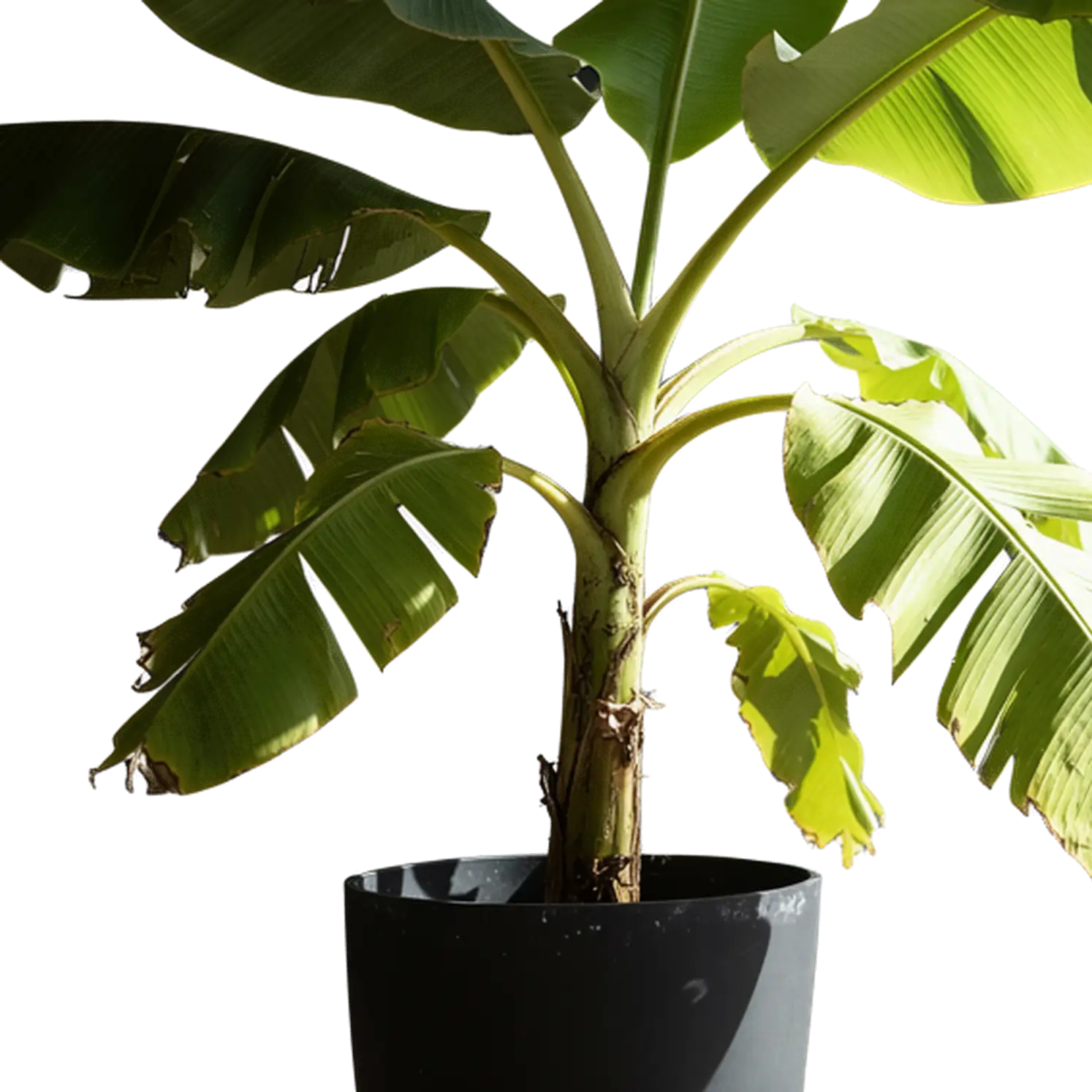
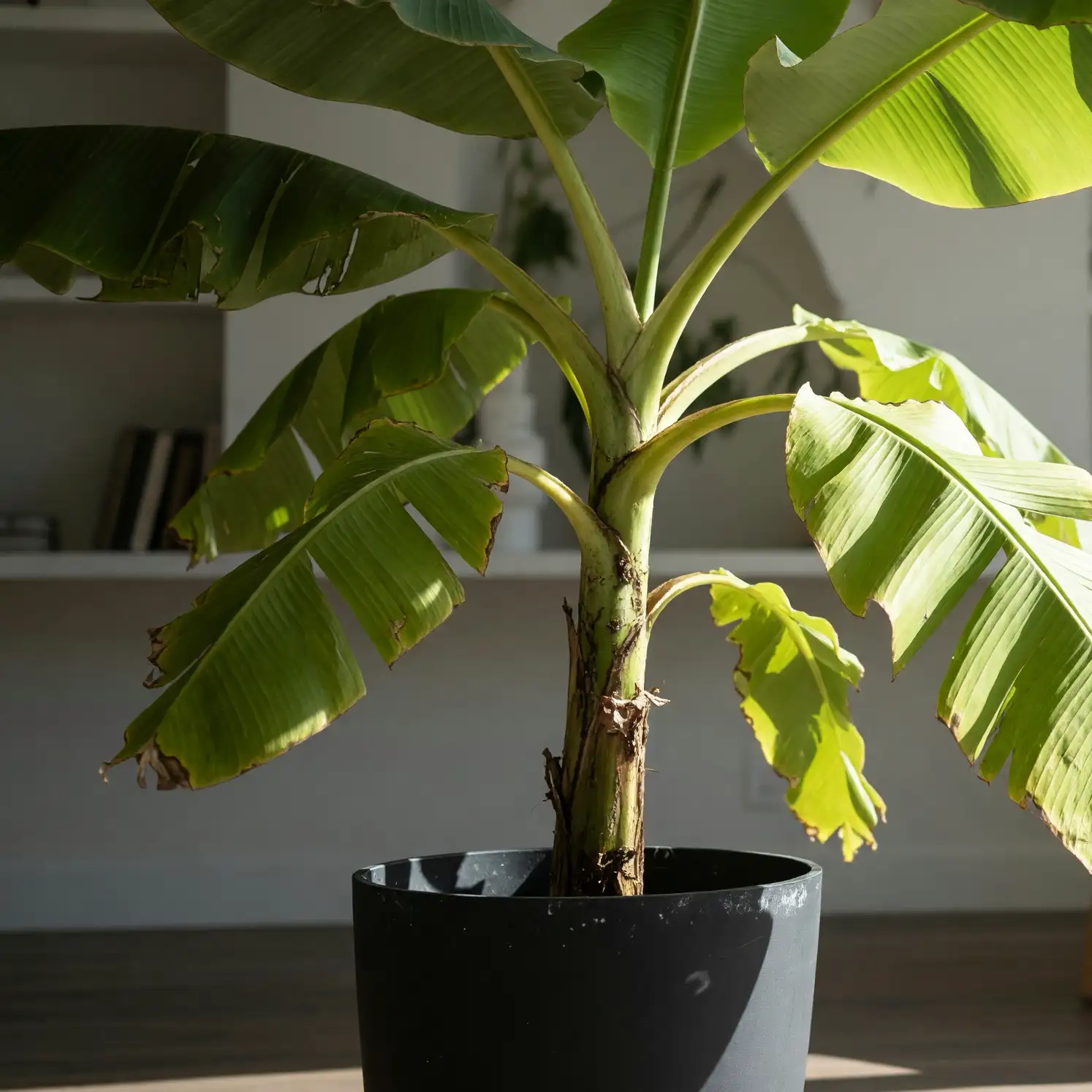
This AI background remover isolates the subject in a product photo, portrait, or illustration. Upload an image and download a transparent cutout to place in a new design.
Upload your image, remove the background, and download the isolated subject.
Upload a JPG, PNG, or WebP within the 10MB limit. Start from the clearest version you have, with the parts you need visible inside the frame.
Let the tool identify the foreground and separate it from the background automatically.
Review the isolated foreground, download the result, and place it over a new layer in your design application. Keep the original nearby for comparison.
A sharp outline and visible details help define the foreground you want to keep.
Use a photo that shows the item’s complete outline and useful details, including handles, straps, or narrow supports. Avoid heavy blur and overlapping props when those make it unclear which parts belong to the product.
Choose artwork with visible outlines or a portrait with distinguishable hair and clothing. When foreground and background share similar colors, inspect those boundaries closely in the resulting cutout.
Place the downloaded image over your destination color. Review the outer edge and the spaces between parts together.
Look for strands, whiskers, or slender stems that have been lost or surrounded by leftover color. If essential details are missing, use a clearer source or finish the mask in an image editor.
Check the spaces inside handles, between fingers, and around overlapping branches. These areas should reveal the new background where the original image showed open space.
Transparent surfaces can carry colors and reflections from their original surroundings. Check how they look in the new setting before using the cutout as a finished product image.
A fringe may be hard to see on the preview background but noticeable in your layout. Inspect the edge at its intended display size and refine it in your editor if needed.
Choose the workflow by what you want to happen to the foreground.
Use background removal for a product already photographed, a portrait for a profile layout, or artwork you want to place elsewhere. The task is to isolate the foreground you already have.
Generate a transparent image when you need a new object or illustration from text, or a new version of a reference image.
An isolated subject is easier to position in a layout or use as an object reference.
Place a product beside its description, reuse an illustration in a slide, or combine a portrait with a new background in your editor. Match its scale and lighting to the destination.
For image-to-3D, choose a cutout that keeps the object’s complete shape and distinguishing parts. A clear photo with a simple background can also work; removal is useful when the surroundings distract from the object.
Common questions about existing images, cutout edges, and transparent output.
Yes. Upload the product photo and run background removal. Pale surfaces and soft shadows may blend into white, so inspect those areas over the color you plan to use behind the product.
Yes. Use a JPG, PNG, or WebP of the artwork. Fine outlines and gaps may need review, especially where background and foreground colors overlap. A layered source file is not required.
This tool automatically separates foreground from background. It does not offer a selective object-removal brush or fill the area behind a chosen object. For a change to the scene, use a suitable image editor or image-to-image generation.
Yes. Place the downloaded cutout over a solid-color layer in your design application. Background replacement happens there; this page handles the foreground separation.
No. Changing the file format keeps the original picture intact. You need to remove the background first, then save the result in a format that retains transparency.
Yes. Sign in to try free background removal. Upload your image, isolate the subject, and download the cutout for your next design.
Upload a photo or illustration and remove its background for your next composition.
Start Free