Create a transparent image from text
Describe the asset itself: a mascot, decorative object, icon, or illustration. Choose the view and visual style, then generate a PNG with a transparent background for your composition.
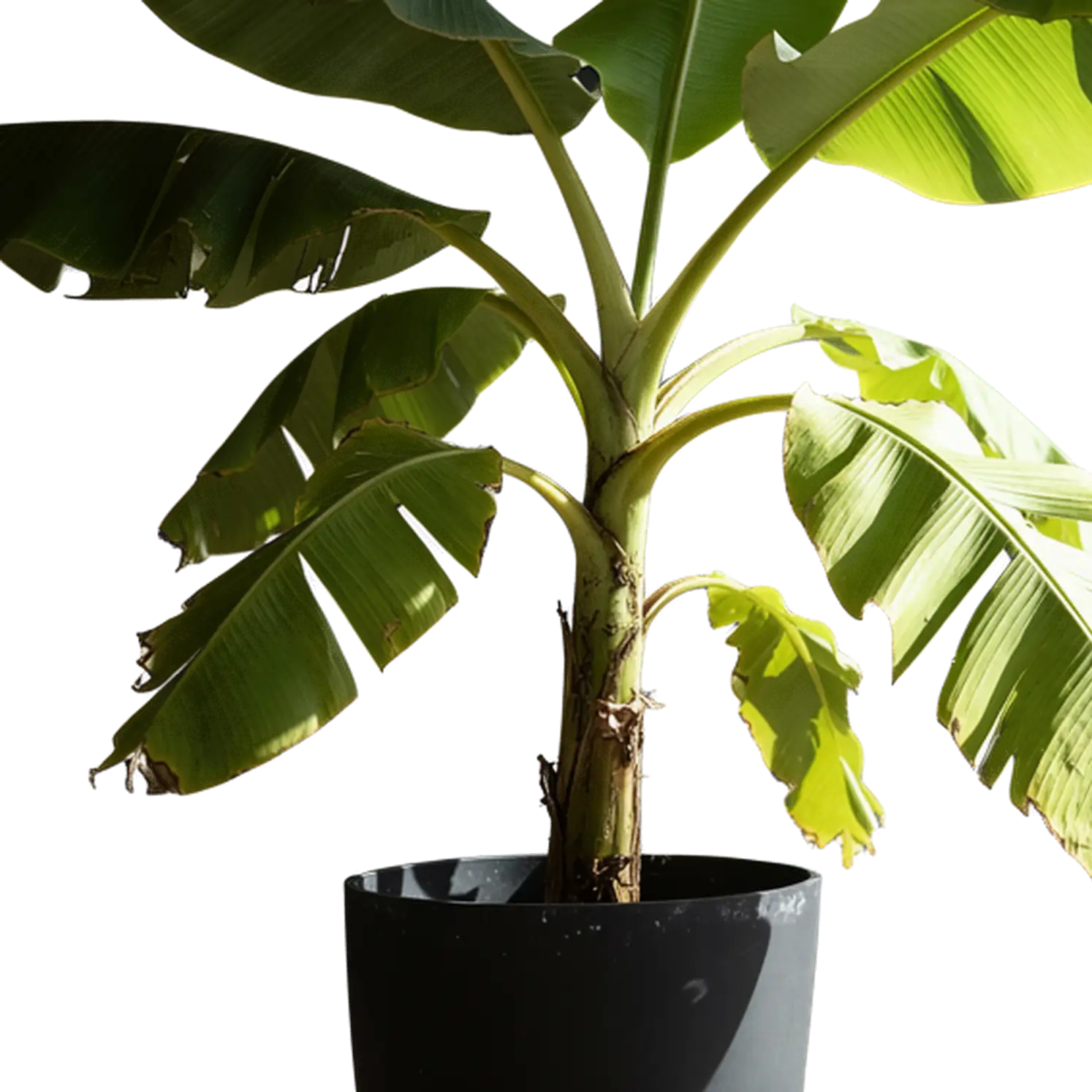
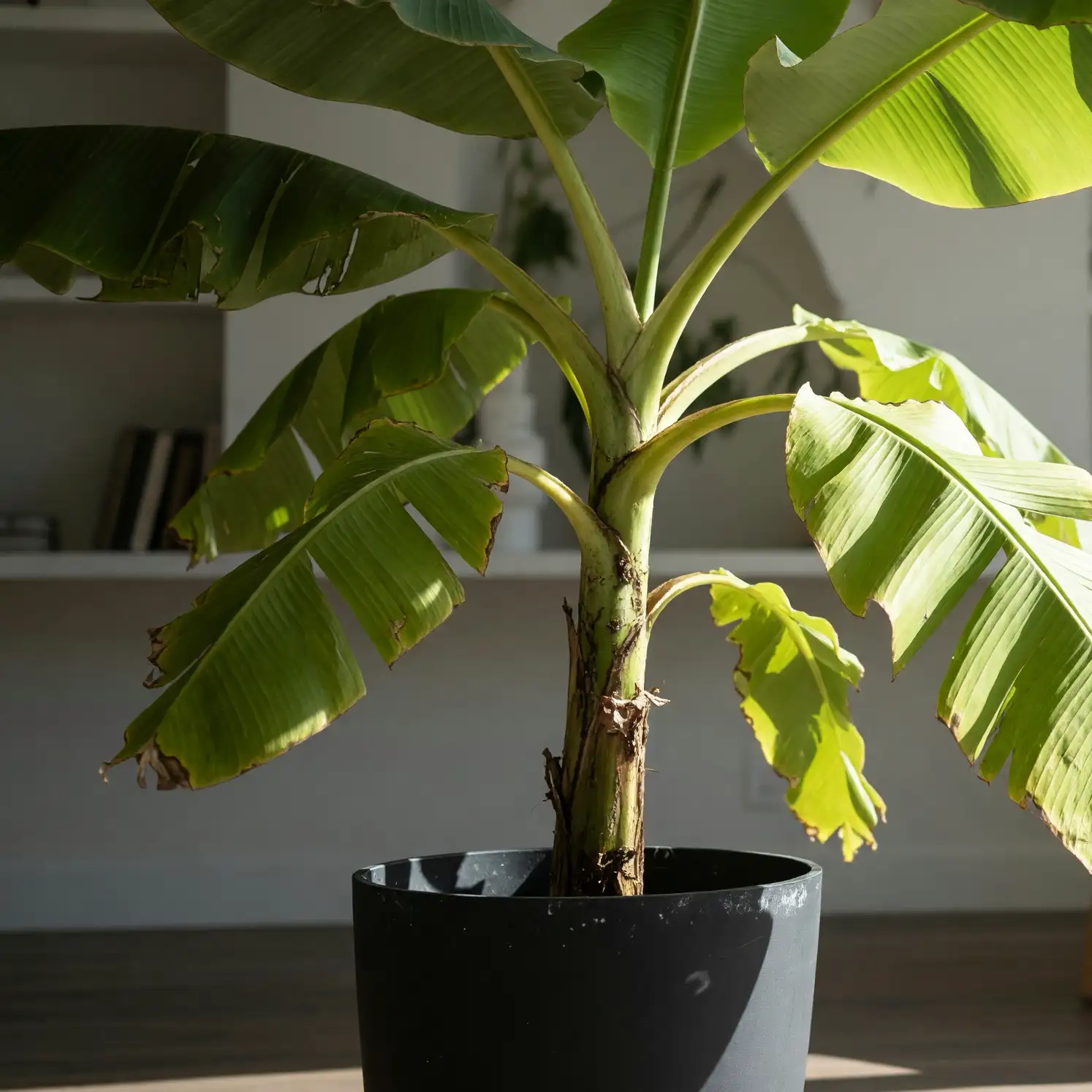
Create objects, characters, and illustrations with transparent backgrounds from text or a reference image. This AI transparent image generator produces PNG assets for layouts, slides, and overlays.
Choose whether you want to invent the foreground or use an existing picture to guide it.
Describe the asset itself: a mascot, decorative object, icon, or illustration. Choose the view and visual style, then generate a PNG with a transparent background for your composition.
Upload a reference to generate a new version of its foreground on a transparent background. Use it when the image already captures the design you want to develop.
Both can give you an isolated subject, but they start from different needs.
Use transparent generation when you need new artwork from a description or want a generated remake of a reference. The result is a new PNG asset for placing, resizing, and combining with other visuals.
Use background removal when your existing photo or illustration already has the foreground you want to reuse. That workflow separates the subject from its surroundings without asking the generator to redraw it.
Remove a background from existing artworkGive the generator a clear foreground to create. Save the surrounding scene for the layout where you will use it.
Say which side of the object should be visible and keep its main parts inside the frame. A little space around the subject gives you room to position it without clipped edges.
Describe the colors, materials, and level of detail that suit the destination. A simple icon needs a readable silhouette; a decorative illustration can carry more texture and ornament.
Name supporting objects only when they should remain part of the foreground. Leave out rooms, scenery, and display surfaces if you want a single floating element.
Choose from the available aspect ratios and resolutions. Give a tall character vertical space or a wide object a wider canvas, keeping the subject large enough for its intended placement.
Use the actual downloaded file to check how the asset fits your design.
Place the PNG over a colored layer to see how the transparent areas blend into your layout.
Check hair, thin parts, and gaps against the colors in your layout. This makes leftover fringes or missing pieces easier to spot than viewing the asset alone.
Save the PNG with its transparency intact. Taking a screenshot or flattening it onto a solid background removes the transparent areas you need for reuse.
Use the PNG as an element in a composition or as an object reference for another creative step.
Place a character beside a heading, add a decorative object to a slide, or combine several elements into a new scene. You control the scale and placement in your design application.
Generate a background or full sceneUse a complete object image as a reference for image-to-3D generation. Choose a view that shows its depth and connections, with all the important parts inside the frame.
Generate a 3D model from a referenceUnderstanding the output and choosing the right workflow.
No. Choose text creation and describe the object or illustration you want. Use the image mode when you already have a reference for the foreground.
Viewers often display transparent areas over white or a checkerboard. Place the downloaded PNG over a colored layer to confirm that it shows through. If the grid or white rectangle remains, it is part of the pixels rather than transparency.
You can request lettering, but review the generated characters carefully. The output is a raster PNG, not an SVG or editable text. Use a design application when typography or individual vector paths must remain editable.
A remake uses the source as guidance and can reconstruct small features. For product labels, logos, or recognizable characters, compare the result with the original. Choose direct background removal when reusing the existing foreground is the priority.
The generated PNG is one image with transparency, not a layered project file. You can position it over other layers, but editing individual parts requires additional image-editing work.
Yes. Sign in to try free transparent image generation. Describe a new asset or upload a reference, then download the PNG for your layout.
Describe an asset or upload a reference. Generate a transparent PNG you can place in your design.
Start Free